Geospatial Python
Review of Python concepts
Data types and data structures
# Numeric
integer = 42
float_num = 3.14
cloud_cover = 15

# Strings
text = "Hello EO"
multiline = """Multiple
lines"""

# Lists (mutable)
coords = [14.5995, 120.9842]  # Manila lat/lon
sensors = ["Sentinel-1", "Sentinel-2", "Landsat-8"]

# Tuples (immutable)
bbox = (120.0, 14.0, 121.0, 15.0)

# Dictionaries
metadata = {
    "satellite": "Sentinel-2",
    "date": "2025-01-15",
    "cloud_cover": 15
}
Control flow
# If statements
if cloud_cover < 20:
    print("Good quality image")
elif cloud_cover < 50:
    print("Moderate quality")
else:
    print("Too cloudy")

# For loops
for sensor in sensors:
    print(f"Processing {sensor} data")

# List comprehension
times_two = [x * 2 for x in range(11)]
print(times_two)

# While loop
count = 1
while count <= 10:
    print(count)
    count += 1
Classes and objects
class Dog:
    def __init__(self, name, age):
        self.name = name
        self.age = age

    def bark(self):
        print(f"{self.name} says Woof!")

    def wag_tail(self):
        print(f"{self.name} is wagging their tail!")

my_dog = Dog("Buddy", 3)
print(my_dog.name)  # prints "Buddy"
my_dog.bark()  # prints "Buddy says Woof!"
my_dog.wag_tail() # prints "Buddy is wagging their tail!"Exercise
Define a class called
Imagethat accepts ametadatadictionary in its constructor and stores it as an instance attribute.Using the
metadatavariable defined earlier (satellite:"Sentinel-2", date:"2025-01-15", cloud_cover:15), create anImageinstance calledimg1.Create a second
Imageinstance calledimg2with the following metadata: satellite:"Sentinel-2", date:"2025-01-16", cloud_cover:32.Store both instances in a list called
images.Loop through
imagesand print themetadataof each.
Expected output:
{'satellite': 'Sentinel-2', 'date': '2025-01-15', 'cloud_cover': 15}
{'satellite': 'Sentinel-2', 'date': '2025-01-16', 'cloud_cover': 32}
class Image:
def __init__(self, metadata):
self.metadata = metadata
img1 = Image(metadata)
img2 = Image({
"satellite": "Sentinel-2",
"date": "2025-01-16",
"cloud_cover": 32
})
images = [img1, img2]
for img in images:
print(img.metadata)Numpy
NumPy (Numerical Python) is the core library for numerical computing in Python. It provides powerful tools for working with arrays, mathematical operations, and large datasets efficiently. In this cheat sheet, NumPy serves as the foundation of the Python scientific ecosystem, meaning many other libraries (like Pandas, SciPy, and machine learning tools) rely on it for fast computations.
📖 RTFM
When in doubt, refer to the NumPy Documentation.
The NumPy Quickstart Tutorial is a great place to start.
Other free resources you can use include:
Array
import numpy as np

# From lists
arr = np.array([1, 2, 3, 4, 5])
matrix = np.array([[1, 2], [3, 4]])

# Special arrays
zeros = np.zeros((3, 3))           # 3x3 array of zeros
ones = np.ones((2, 4))             # 2x4 array of ones
identity = np.eye(4)               # 4x4 identity matrix
random = np.random.rand(3, 3)      # 3x3 random [0, 1)
range_arr = np.arange(0, 10, 2)    # [0, 2, 4, 6, 8]
linspace = np.linspace(0, 1, 5)    # 5 values from 0 to 1
Array operations
import numpy as np

# Define the arrays
a = np.array([1, 2, 3])
b = np.array([4, 5, 6])

print("Original Arrays:")
print("a:", a)
print("b:", b)

# Arithmetic Operations
print("\nArithmetic Operations:")

# Sum
sum = a + b
print("Sum:", sum)

# Difference
diff = a - b
print("Difference:", diff)

# Product
prod = a * b
print("Product:", prod)

# Quotient
quotient = a / b
print("Quotient:", quotient)

# Power
power = a ** 2
print("Power:", power)

arr = np.array([1, 2, 3, 4, 5])
print("\nStatistics Operations:")

# Mean
mean = arr.mean()
print("Mean:", mean)

# Standard Deviation
std_dev = arr.std()
print("Standard Deviation:", std_dev)

# Minimum Value
min_val = arr.min()
print("Minimum Value:", min_val)

# Maximum Value
max_val = arr.max()
print("Maximum Value:", max_val)

# Sum of Elements
sum_val = arr.sum()
print("Sum:", sum_val)

# Indexing Operations
matrix = np.array([[1, 2], [3, 4]])
print("\nIndexing Operations:")

# First Row
first_row = matrix[0, :]
print("First Row:", first_row)

# Second Column
second_col = matrix[:, 1]
print("Second Column:", second_col)

# Boolean indexing
print("\nBoolean Indexing Operation:")
arr = np.array([1, 2, 3, 4, 5])
greater_than_5 = arr[arr > 5]
print("Elements Greater than 5:", greater_than_5)
Array manipulation
# Shape Operations
arr = np.array([[1, 2, 3], [4, 5, 6]])

print("Original Array:\n", arr)

# Reshape to 3x2
reshaped_arr = arr.reshape(3, 2)
print("Reshaped Array (3x2):\n", reshaped_arr)

# Flatten to 1D
flattened_arr = arr.flatten()
print("Flattened Array:\n", flattened_arr)

# Transpose
transposed_arr = arr.transpose()
print("Transposed Array:\n", transposed_arr)

# Stacking Operations
# Vertical Stack
vertical_stack = np.vstack([a, b])
print("Vertical Stack:\n", vertical_stack)

# Horizontal Stack
horizontal_stack = np.hstack([a, b])
print("Horizontal Stack:\n", horizontal_stack)

# Stack along axis
stacked_arr = np.stack([a, b], axis=0)
print("Stacked Array:\n", stacked_arr)

# Concatenation Operations
# Concatenate
concatenated_arr = np.concatenate([a, b])
print("Concatenated Array:\n", concatenated_arr)GeoPandas
GeoPandas is an extension of Pandas designed for working with geospatial data. It allows you to handle geographic information (such as points, lines, and polygons) in a tabular format, just like a regular DataFrame—but with added spatial capabilities. In this cheat sheet, GeoPandas is introduced as the main tool for vector-based geospatial analysis in Python, combining data manipulation with mapping and spatial operations.
📖 RTFM
When in doubt, refer to the GeoPandas Documentation.
The GeoPandas User Guide covers core concepts in depth.
Other free resources you can use include:
GeoDataFrames
The core data structure in GeoPandas are:
the
geopandas.GeoDataFrame, a subclass ofpandas.DataFrame, that can store geometry columns and perform spatial operations, andthe
geopandas.GeoSeries, a subclass ofpandas.Series, handles the geometries.
Therefore, your GeoDataFrame is a combination of pandas.Series, with traditional data (numerical, boolean, text etc.), and geopandas.GeoSeries, with geometries (points, polygons etc.).
You can have as many columns with geometries as you wish; there’s no limit typical for desktop GIS software.
Reading/Writing Vector Data
# Read files
gdf = gpd.read_file("data.shp")
gdf = gpd.read_file("data.geojson")
gdf = gpd.read_file("data.gpkg")

# Write files
gdf.to_file("output.shp")
gdf.to_file("output.geojson", driver="GeoJSON")
gdf.to_file("output.gpkg", driver="GPKG")👨💻 TRY IT OUT
Try it with our test data or your own dataset!
import geopandas as gpd

gdf_municities_gpkg = gpd.read_file("data/phl.gpkg", layer='ncr_municities_pop') # Vector data inside of a geopackage
gdf_municities_gpkg
df_mcdo_csv = gpd.read_file("data/NCR_McDonalds.csv") # CSV w/ a geometry field but with fields for latitude and longitude
df_mcdo_csv# Let's add a geometry field using the known latitudes and longitudes
gdf_mcdo_csv = gpd.GeoDataFrame(df_mcdo_csv, geometry=gpd.points_from_xy(df_mcdo_csv.longitude, df_mcdo_csv.latitude))
gdf_mcdo_csvCRS handling
GeoPandas is able to handle CRS.
Let’s try to use it to convert our NCR municities data to PRS 92 Zone 3.
import geopandas as gpd

gdf_municities = gpd.read_file("data/phl.gpkg", layer='ncr_municities_pop')
gdf_municities.crs # Print current CRSgdf_municities_3123 = gdf_municities.to_crs(3123) # Create new GDF that's a copy of gdf_municities but w/ CRS as EPSG:3123gdf_municities_3123 # Notice the coordinates used in the geometry fieldGeoDataFrame Operations
# Inspect data
gdf.head()              # First 5 rows
gdf.info()              # Column info
gdf.describe()          # Statistics
gdf.crs                 # Coordinate Reference System
gdf.geometry            # Geometry column
gdf.total_bounds        # Bounding box [minx, miny, maxx, maxy]

# Filtering
metro_manila = gdf[gdf["region"] == "NCR"]
large_areas = gdf[gdf.area > 1000000]

# Sorting
gdf.sort_values("population", ascending=False)
# Filtering by attributes
import geopandas as gpd
gdf_municities = gpd.read_file("data/phl.gpkg", layer='ncr_municities_pop')
gdf_municities[gdf_municities.pop2020 > 1000000] # Get municities with pop2020 > 1000000dist2 = gdf_municities[gdf_municities["province"] == "Second District, NCR"] # Get only the municities in the Second District of NCR
dist2increase = gdf_municities[(gdf_municities.pop2020 - gdf_municities.pop2015) > 50000] # Get only the municities whose populatin increased by at least 50000 from 2015 to 2020
increaseAttribute joins
# Add the population from 1990 to 2010 to the data

import pandas as pd

ncr_pop1990_2010 = pd.read_csv("data/ncr_pop1990_2010.csv") # dataframe of 1990-2010 population
ncr_pop1990_2010
gdf_municities_pop1990_2020 = gdf_municities_3123.merge(ncr_pop1990_2010, on="psgc_municity") #join the data using the psgc_municity field
gdf_municities_pop1990_2020⚠️ IMPORTANT
Column or index level names to join on must be found in both DataFrames (i.e. same name).
If both key columns contain rows where the key is a null value, those rows will be matched against each other. This is different from usual SQL join behaviour and can lead to unexpected results.
🤔 SOMETHING TO THINK ABOUT
Notice that we have two municity fields in the joined output. Why is that?
Let’s remove the extra field and rename the other one.
🗐 Always use copies when doing edits to your dataframes
It’s always a good idea to make a copy of your dataframes and apply changes to them instead of working with the original dataframe directly. You can do this with:
df_copy = df.copy()gdf_municities_pop1990_2020_fix1 = gdf_municities_pop1990_2020.copy() # IMPORTANT: It's always a good idea to make a copy of your dataframes
gdf_municities_pop1990_2020_fix1 = gdf_municities_pop1990_2020_fix1.drop("municity_y", axis=1) # drop the municity_y
gdf_municities_pop1990_2020_fix1.rename(columns={'municity_x':'municity'}, inplace=True)
gdf_municities_pop1990_2020_fix1 You can also use the del function.
gdf_municities_pop1990_2020_fix2 = gdf_municities_pop1990_2020.copy() # IMPORTANT: It's always a good idea to make a copy of your dataframes
del gdf_municities_pop1990_2020_fix2["municity_y"] # delete the municity_y
gdf_municities_pop1990_2020_fix2.rename(columns={'municity_x':'municity'}, inplace=True)
gdf_municities_pop1990_2020_fix2
Spatial Operations
# Coordinate Reference System
gdf.to_crs("EPSG:4326")          # Reproject to WGS84
gdf.to_crs("EPSG:32651")         # Reproject to UTM Zone 51N

# Geometric properties
gdf.area                          # Area
gdf.length                        # Perimeter/length
gdf.centroid                      # Centroids
gdf.bounds                        # Bounding boxes

# Spatial relationships
gdf1.intersects(gdf2)            # Intersection check
gdf1.contains(point)             # Containment check
gdf1.within(polygon)             # Within check

# Spatial joins
gpd.sjoin(points, polygons, how="inner", predicate="within")

# Overlay operations
gpd.overlay(gdf1, gdf2, how="intersection")
gpd.overlay(gdf1, gdf2, how="union")
gpd.overlay(gdf1, gdf2, how="difference")
gdf_municities_3123.area # Area in sqm⚠️ CRS IS IMPORTANT
Try this using the GDF w/ geographic CRS (WGS84). What happens?
# Try it here
# gdf_municities.area # Area in sqm
gdf_municities_3123.area/10000 # Area in hectares Spatial Joins
GeoPandas has support for spatial joins (https://
gdf_ncr_floods = gpd.read_file("data/ncr.gpkg", layer="manila_flood_hazard_lipad")
gdf_ncr_hospitals = gpd.read_file("data/ncr.gpkg", layer="manila_hospitals_osm")gdf_ncr_hospitalshospitals_join = gdf_ncr_hospitals.sjoin(gdf_ncr_floods, how="left") # Tag/assign the Var and hazard fields for each hospital
hospitals_joinVisualizations
# Basic plot
gdf.plot()

# Styled plot
gdf.plot(column="population",
         cmap="YlOrRd",
         legend=True,
         figsize=(10, 8))

# Multiple layers
ax = gdf1.plot(color="blue", alpha=0.5)
gdf2.plot(ax=ax, color="red", alpha=0.5)
gdf_municities.plot("pop2020", legend="True") # Simple map using GeoPandasgdf_municities.explore("pop2020", legend="True") # Interactive versionhospitals_join.explore("hazard", legend="True")Learn more about explore: https://
Rasterio
Rasterio is a Python library used for working with raster data—gridded datasets such as satellite imagery, elevation models, and remote sensing data. In this cheat sheet, Rasterio is presented as the go-to tool for raster-based geospatial analysis, allowing you to read, write, and manipulate raster datasets efficiently in Python.
📖 RTFM
When in doubt, refer to the Rasterio Documentation.
The Rasterio Quickstart covers the most common read/write operations.
Other free resources you can use include:
Reading raster data
import rasterio

# Open raster
with rasterio.open("image.tif") as src:
    # Metadata
    print(src.crs)          # CRS
    print(src.bounds)       # Bounding box
    print(src.shape)        # (height, width)
    print(src.count)        # Number of bands
    print(src.transform)    # Affine transform

    # Read data
    band1 = src.read(1)     # Read band 1
    all_bands = src.read()  # Read all bands

    # Windowed read
    window = rasterio.windows.Window(0, 0, 512, 512)
    subset = src.read(1, window=window)
import rasterio
ncr_dem = rasterio.open("data/ncr_srtm_dem.tif")
ncr_dem.meta{'driver': 'GTiff',
'dtype': 'int16',
'nodata': -32768.0,
'width': 781,
'height': 1575,
'count': 1,
'crs': CRS.from_wkt('PROJCS["WGS 84 / UTM zone 51N",GEOGCS["WGS 84",DATUM["WGS_1984",SPHEROID["WGS 84",6378137,298.257223563,AUTHORITY["EPSG","7030"]],AUTHORITY["EPSG","6326"]],PRIMEM["Greenwich",0,AUTHORITY["EPSG","8901"]],UNIT["degree",0.0174532925199433,AUTHORITY["EPSG","9122"]],AUTHORITY["EPSG","4326"]],PROJECTION["Transverse_Mercator"],PARAMETER["latitude_of_origin",0],PARAMETER["central_meridian",123],PARAMETER["scale_factor",0.9996],PARAMETER["false_easting",500000],PARAMETER["false_northing",0],UNIT["metre",1,AUTHORITY["EPSG","9001"]],AXIS["Easting",EAST],AXIS["Northing",NORTH],AUTHORITY["EPSG","32651"]]'),
'transform': Affine(30.200644046094723, 0.0, 275364.4216,
0.0, -30.475696571428507, 1635171.5473)}ncr_dem.shape # (rows, cols)(1575, 781)ncr_dem.count # number of bands1ncr_dem.dtypes # data type of pixel value per band('int16',)ncr_dem.bounds # bounding box in data CRSBoundingBox(left=275364.4216, bottom=1587172.3252, right=298951.1246, top=1635171.5473)Writing raster data
import rasterio

# Write single band
with rasterio.open(
    "output.tif",
    "w",
    driver="GTiff",
    height=data.shape[0],
    width=data.shape[1],
    count=1,
    dtype=data.dtype,
    crs="EPSG:32651",
    transform=transform
) as dst:
    dst.write(data, 1)

# Write multiple bands
with rasterio.open("output.tif", "w", ...) as dst:
    for i, band in enumerate(bands, start=1):
        dst.write(band, i)
Raster operations
# Reproject
from rasterio.warp import reproject, Resampling

reproject(
    source=src_array,
    destination=dst_array,
    src_transform=src.transform,
    src_crs=src.crs,
    dst_transform=dst_transform,
    dst_crs="EPSG:4326",
    resampling=Resampling.bilinear
)

# Masking
from rasterio.mask import mask

with rasterio.open("image.tif") as src:
    clipped, transform = mask(src, shapes, crop=True)

# Calculate indices
with rasterio.open("sentinel2.tif") as src:
    red = src.read(4).astype(float)
    nir = src.read(8).astype(float)
ndvi = (nir - red) / (nir + red)Visualization
from rasterio.plot import show

# Single band
with rasterio.open("image.tif") as src:
    show(src, cmap="gray")

# RGB composite
with rasterio.open("image.tif") as src:
    show((src, [4, 3, 2]))  # True color (R, G, B)
%matplotlib inline
from rasterio import plot
plot.show(ncr_dem)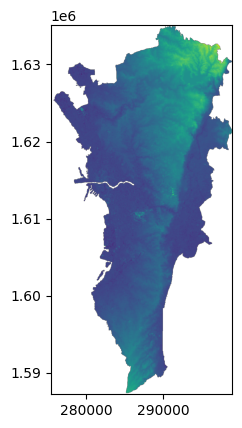
<Axes: >%matplotlib inline
plot.show_hist(ncr_dem)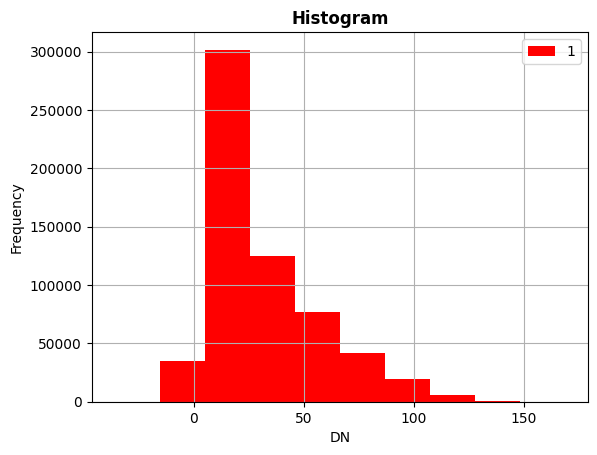
from rasterio.plot import show

with rasterio.open("data/pan.tiff") as src:
    show(src, cmap="gray")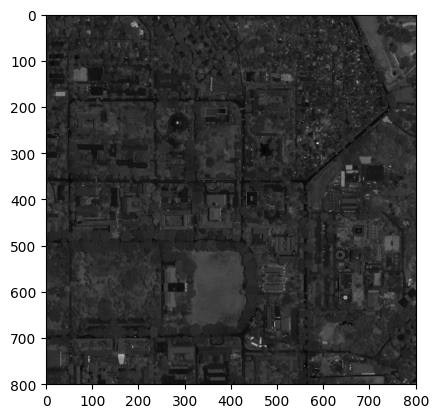
with rasterio.open("data/multi.tiff") as src:
    show((src, [3, 2, 1]))  # True color (R, G, B)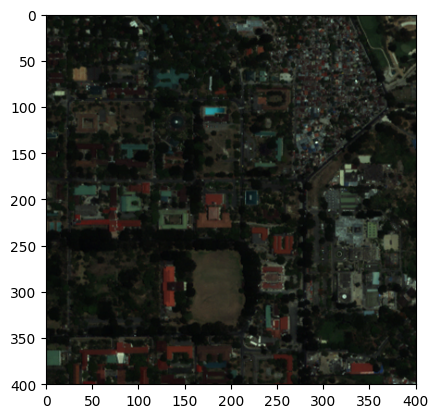
up_multiband = rasterio.open("data/multi.tiff")
up_pan = rasterio.open("data/pan.tiff")

from matplotlib import pyplot as plt

fig, (axr, axg, axb) = plt.subplots(1,3, figsize=(21,7))
plot.show((up_multiband, 1), ax=axr, cmap='Reds', title='R')
plot.show((up_multiband, 2), ax=axg, cmap='Greens', title='G')
plot.show((up_multiband, 3), ax=axb, cmap='Blues', title='B')
<Axes: title={'center': 'B'}>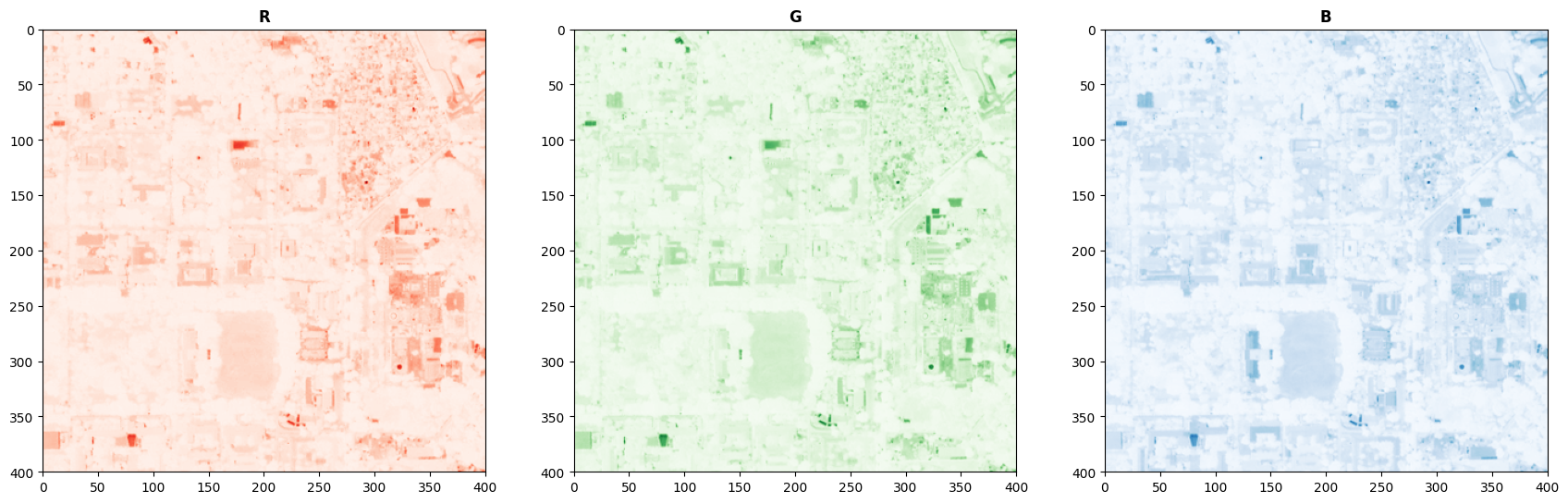
Raster algebra: NDVI
import numpy as np

rasterpath = 'data/sample_landsat.tif'

satellite_image = rasterio.open(rasterpath)

# Read Band 3 (Red) and Band 4 (NIR)
red = satellite_image.read(3).astype('float32')
nir = satellite_image.read(4).astype('float32')

# Create an empty array of zeros that is the exact same size as our image
ndvi = np.zeros_like(red)

# Create a True/False map of all the pixels where (nir + red) is NOT zero
valid_pixels = (nir + red) != 0

# Only calculate NDVI on those valid pixels
# The background pixels will just stay as the 0s in step 2.
ndvi[valid_pixels] = (nir[valid_pixels] - red[valid_pixels]) / (nir[valid_pixels] + red[valid_pixels])

print(f"Max NDVI (Healthiest vegetation): {np.max(ndvi):.2f}")
print(f"Min NDVI (Water or Built-up): {np.min(ndvi):.2f}")
Max NDVI (Healthiest vegetation): 0.96
Min NDVI (Water or Built-up): -0.95
import matplotlib.pyplot as plt

# Initialize the plot
fig, ax = plt.subplots(figsize=(10, 8))

# Plot the NDVI array
# cmap='RdYlGn' stands for Red-Yellow-Green.
# vmin and vmax lock our color scale strictly between -1 and 1
im = ax.imshow(ndvi, cmap='RdYlGn', vmin=-1, vmax=1)

# Add a colorbar to the side so we know what the colors mean
plt.colorbar(im, ax=ax, label="NDVI Value")

plt.title("Landsat NDVI (Crop Health Index)", fontsize=16)
ax.set_axis_off() # Hides the X/Y pixel numbers on the borders
plt.show()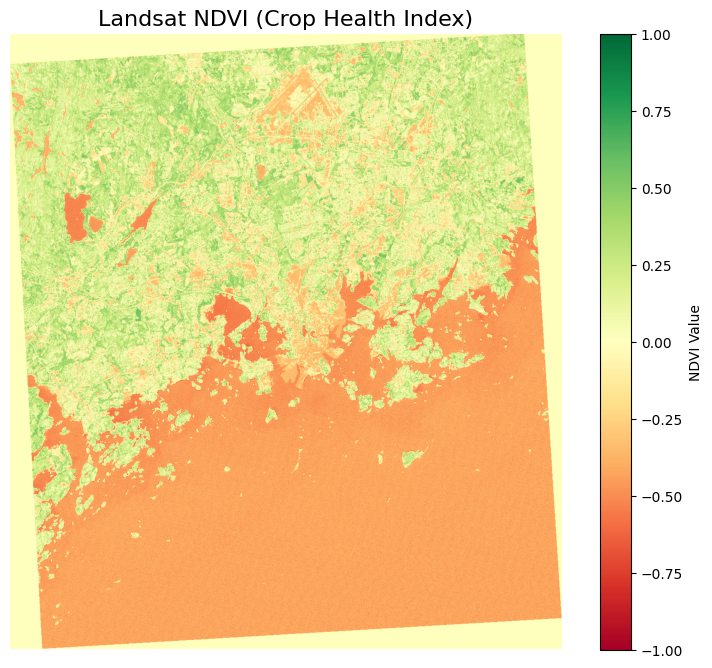
Clipping
To speed up analysis, we often “clip” or “crop” the image using a vector polygon (e.g., province boundary or a farm parcel) so we only analyze relevant pixels.
We will use shapely to draw a quick custom Area of Interest (AOI) box right in the middle of our image, and use rasterio.mask to cut it out.
import geopandas as gpd
from shapely.geometry import box
import rasterio.mask
import matplotlib.pyplot as plt

# Get the boundaries of original satellite image
bounds = satellite_image.bounds
minx, miny, maxx, maxy = bounds.left, bounds.bottom, bounds.right, bounds.top

# Create a smaller bounding box in the center of the image
center_x = (minx + maxx) / 2
center_y = (miny + maxy) / 2
aoi_geom = box(center_x - 5000, center_y - 5000, center_x + 5000, center_y + 5000)

# Convert Shapely shape into a GeoDataFrame (so it has a CRS)
aoi_gdf = gpd.GeoDataFrame({'geometry': [aoi_geom]}, crs=satellite_image.crs)

# Perform the Clip
clipped_image_array, clipped_transform = rasterio.mask.mask(
    satellite_image,
    aoi_gdf.geometry.values,
    crop=True
)

print(f"Original shape: {satellite_image.shape}")
print(f"Clipped shape: {clipped_image_array.shape[1:]}")

# Visualize the clipped result
fig, ax = plt.subplots(figsize=(6, 6))
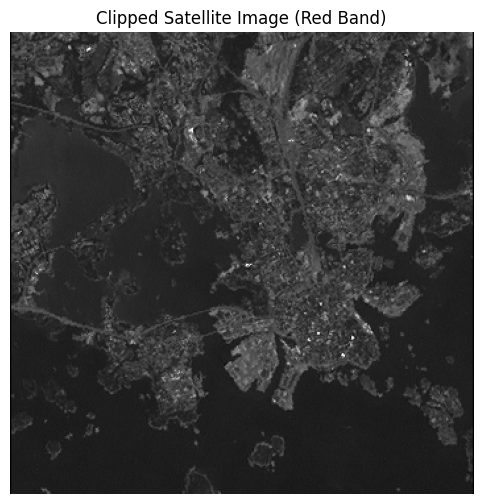
ax.imshow(clipped_image_array[2], cmap='gray') # Band 3 (Red) is at index 2
plt.title("Clipped Satellite Image (Red Band)")
ax.set_axis_off()
plt.show()
Original shape: (1439, 1288)
Clipped shape: (351, 352)